
Back in July with v2.2, we added support for Windows guests. On November 6, we shipped v2.3 of Lima and now it runs without extra dependencies on Windows: VMs start through the same Host Compute System that powers WSL2, without QEMU and without a Unix toolchain. On Linux, VMs are getting the “real IP address” networking that Mac users have had through `socket_vmnet`. And on every host, managing your VMs gets friendlier with a new terminal UI.
What is Lima?
Lima (Linux Machines) is a command-line tool to launch local virtual machines. Originally focused on running containers on a laptop and promoting containerd to Mac users, Lima joined the CNCF as a Sandbox project in September 2022 and was promoted to Incubating in October 2025. Today, Lima supports a wide variety of non-container workloads, non-macOS hosts, non-Linux guests and robust AI sandboxing.
If you are using Homebrew, Lima can be installed using:
brew install lima
If you are on Windows, Lima can be installed through PowerShell using:
winget install Lima.LimaFor other installation methods, see https://lima-vm.io/docs/installation/.
Updates in v2.3
Windows hosts: the HCS driver (experimental)
Until now, Windows users who wanted Lima had two options: the `wsl2` or QEMU driver. v2.3 adds a third, the new `hcs` driver. It talks directly to the Windows Host Compute System (HCS) API, the Windows virtualization layer that WSL2 is built on. In the v2.2 announcement, we said that our LFX mentorship would “explore and evaluate native virtualization support for Windows hosts”. A few weeks later, that research has become a working driver.
Before you try it
- Enable virtualization on your machine.
- Add yourself to the `
Hyper-V Administrators` group from an Administrator PowerShell, then restart your terminal:
net localgroup "Hyper-V Administrators" <user name> /add- Then run Lima from a shell:
limactl start --vm-type hcs --plain --dns 8.8.8.8
lima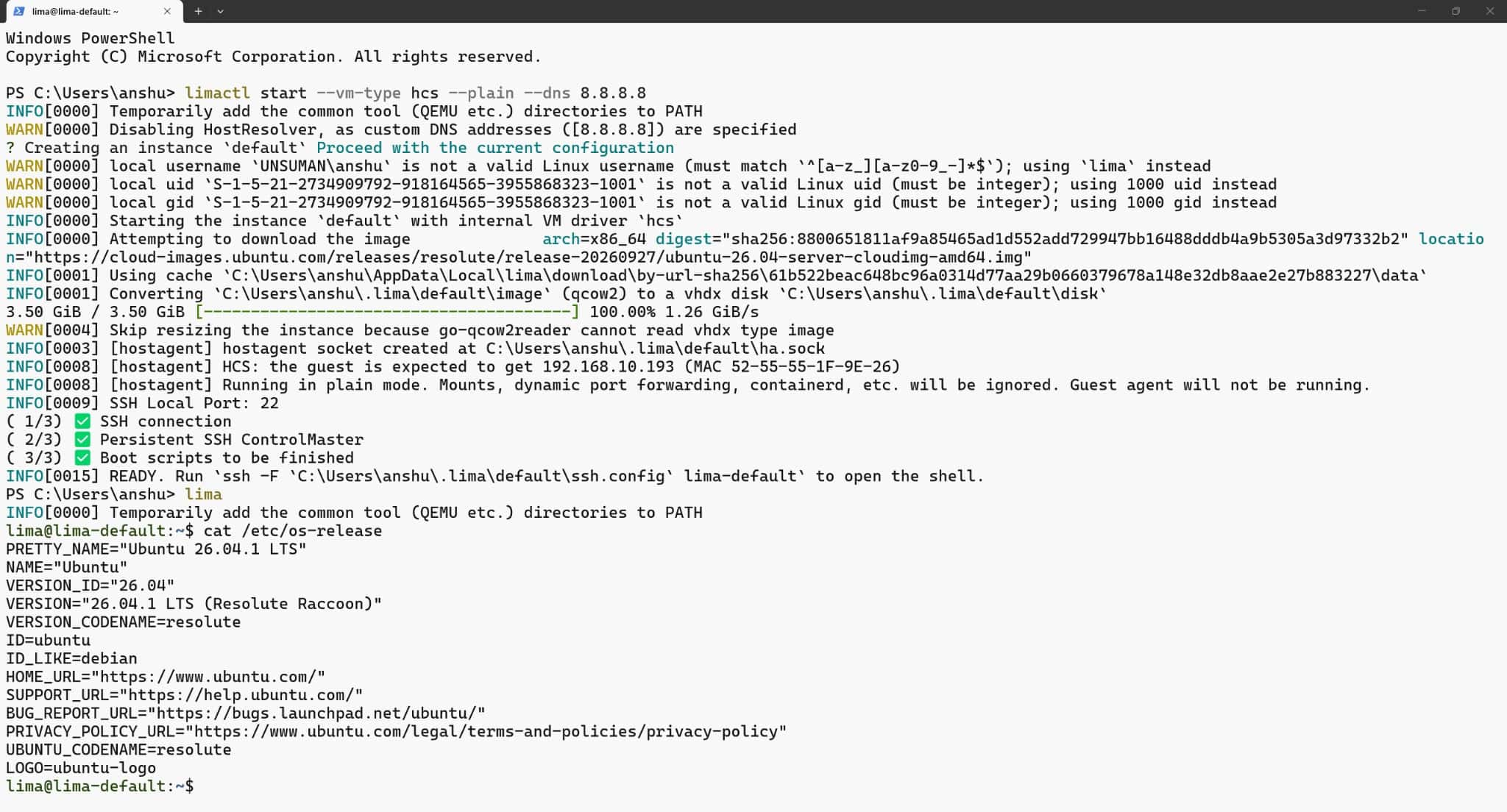
Current limitations
- Only `plain` mode is supported. There are no file mounts and no dynamic port forwarding yet.
- Only one HCS instance can run at a time, because the HCN network subnet is fixed.
- A DNS server must be specified explicitly using the `–dns` flag.
See the HCS driver docs for details.
More Windows improvements
- Lima now recognizes Windows built-in SSH client, handles Windows paths correctly, and uses a matching mount server. `
limactl shell`, `limactl copy`, and reverse-sshfs mounts work on a stock Windows install. - If you install QEMU in its default location, Lima previously could not find it until you added `
%PROGRAMFILES%\QEMU` to your `PATH` by hand. Lima now checks these common install directories automatically. - The Windows guests introduced in v2.2 could boot, but you could not customize them at startup. They now have limited support for `
provision`. `system`, `user`, `data` and `dependency` scripts let you install software and configure the guest automatically. `boot`, `yq` and `ansible` modes are not supported yet. See the Windows guest docs for details.
Linux hosts: Real networking for VMs
On macOS, `socket_vmnet` gives VMs an IP address that the host can reach directly. Linux had no equivalent, so the `lima: shared`, `lima: host` and `lima: bridged` networks only worked on macOS.
v2.3 introduces `lima-privileged-net`, a small privileged helper for Linux hosts which:
- creates a Linux bridge for each network and assigns the gateway address,
- runs `
dnsmasq` for DHCP and DNS, and adds NAT and forwarding rules for `shared` mode, - creates one tap device per instance, gives it to the calling user, and attaches it to the bridge,
- removes the network again when the last instance leaves, and only ever touches interfaces that follow Lima’s naming scheme.
One-time setup on Linux: the `sudoers` file
Creating bridges and tap devices requires root, so there are two steps before your first start:
- Install Lima as root, and install `
dnsmasq`. `limactl sudoers` refuses to generate rules for a helper that isn’t root-owned. - Generate and install the rules:
limactl sudoers >etc_sudoers.d_lima
less etc_sudoers.d_lima
sudo install -o root -m 0440 etc_sudoers.d_lima /etc/sudoers.d/lima
rm etc_sudoers.d_lima
Then start an instance on a managed network:
limactl start --network=lima:shared --vm-type=qemu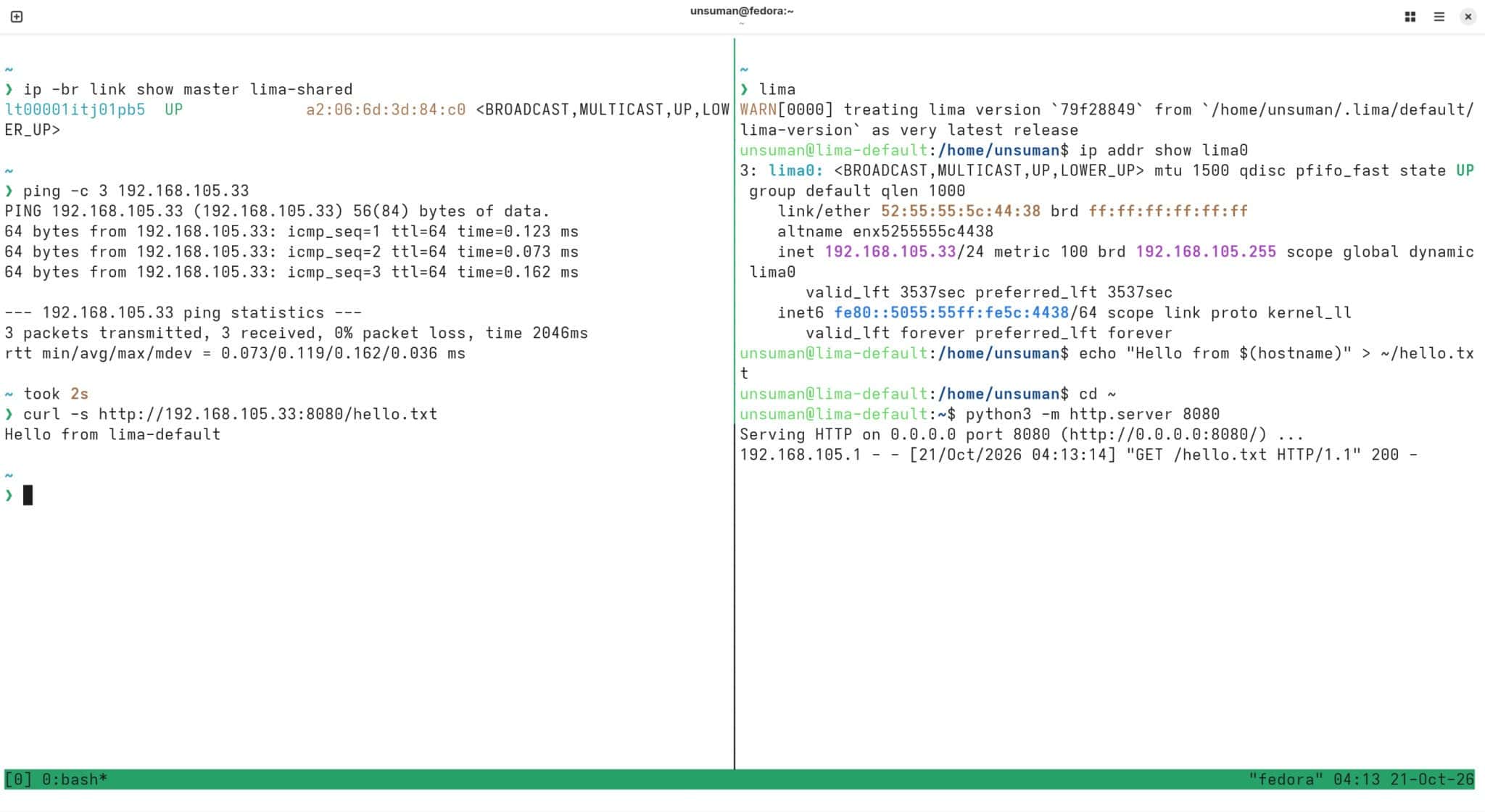
See the Linux networking docs for details.
macOS hosts: Give your VM a real disk
With v2.3, Lima can now attach a block device (USB drive or an external SSD) to VZ guests, without going through a file share. In order for this feature to work, sudo privileges are required to configure it.
One-time setup on macOS: the `sudoers` file
Opening a host disk requires root, so there are two steps before your first `–block-device` start:
- The helper and every directory above it must be root-owned. Typical Homebrew installs are user-writable, so extract the macOS release archive into `
/opt/lima` and run `/opt/lima/bin/limactl` directly:As your regular user, generate the rule, review it, and install it:
sudo install -d -o root -g wheel -m 0755 /opt/lima
sudo tar --no-same-owner -xzf lima-VERSION-Darwin-ARCH.tar.gz -C /opt/lima
2. As your regular user, generate the rule, review it, and install it:
limactl sudoers --block-device=/dev/disk4 >etc_sudoers.d_lima
less etc_sudoers.d_lima
visudo -cf etc_sudoers.d_lima
sudo install -o root -g wheel -m 0444 etc_sudoers.d_lima /etc/sudoers.d/lima
rm etc_sudoers.d_lima
The rule only lets your user run the helper on that one device. When you regenerate the file, include every grant you want to keep, because installing it replaces the previous file.
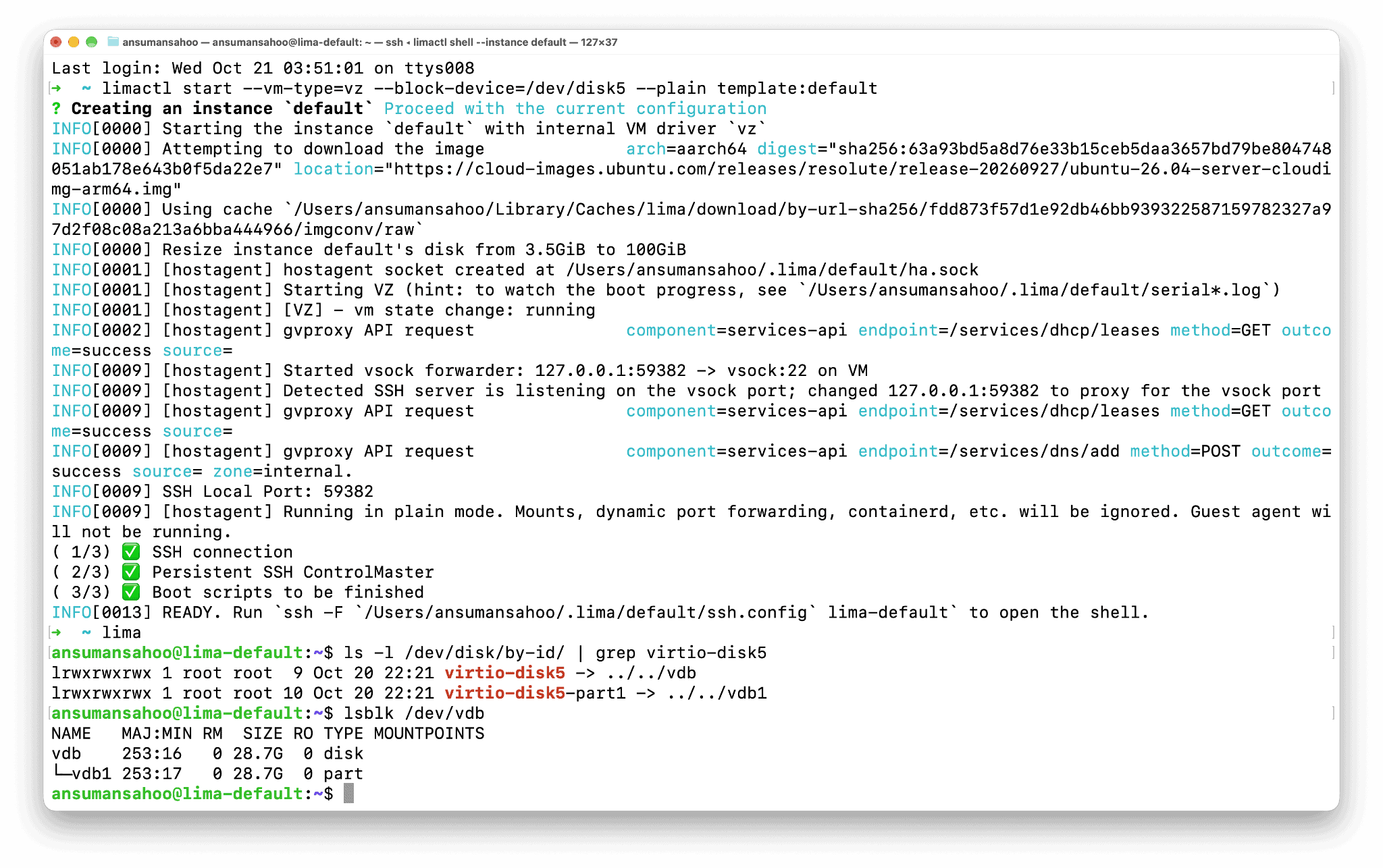
After these steps, then it’s a single flag:
limactl start --vm-type=vz --block-device=/dev/disk4 template:default Inside the guest, each device appears under `/dev/disk/by-id/virtio-<name>` (for example `virtio-disk4`). From there you can partition, format and mount it as you like. You can repeat `--block-device` to attach more than one device.
💡 If you don’t have a spare drive, you can also test with a RAM disk: `hdiutil attach -nomount ram://65536`
⚠️ macOS mounts external drives automatically. Unmount the drive first (e.g. `diskutil unmountDisk /dev/disk4`, don’t eject it), or the VM fails to start with `resource busy`.
Built with security in mind
Giving a VM raw access to a disk is powerful, so it needs to be safe. An earlier implementation of this feature was reverted after a security report. The version in v2.3 was redesigned around a few principles:
- Lima itself never opens the disk as root. A dedicated privileged helper, `
lima-privileged-block-device`, does it instead. Lima refuses to use the helper unless it and every directory above it are owned by root and not writable by regular users. - Access is granted per device, through a `
sudoers` file generated by `limactl sudoers --block-device=/dev/diskN`. The helper only accepts real macOS disk device nodes, and only the ones listed in that file. You review the file, validate it with `visudo -cf`, and then install it yourself. Starting a VM never grants root access silently. - Instances that share a `
LIMA_HOME’ lock the whole disk, including its raw and block aliases and partitions. This prevents two VMs from writing to the same disk.
⚠️ Never grant access to your boot or system disk. Never mount the same filesystem on the host and in a guest (or in two guests) at the same time.
The full setup guide is in the disk docs.
More for macOS
- Set `
osOpts.Darwin.suppressFirstLoginSetup: true` and Lima pre-configures macOS guests so the first-login setup screens are skipped. This is useful for headless or automated VMs. - `
audio.microphone: true` gives VZ guests a capture device in addition to speakers. It is opt-in, so macOS only asks for microphone permission when you enable it. - `
nestedVirtualization` now works with the HVF accelerator on aarch64 (requires QEMU 11.1 or later and macOS 15 or later). - `
limactl snapshot` now works with the krunkit driver while the instance is stopped.
`limactl menu`: a TUI for your VMs (experimental)
If you prefer arrow keys to typing commands then v2.3 adds `limactl menu’, an interactive terminal UI for managing your Lima instances.
limactl menu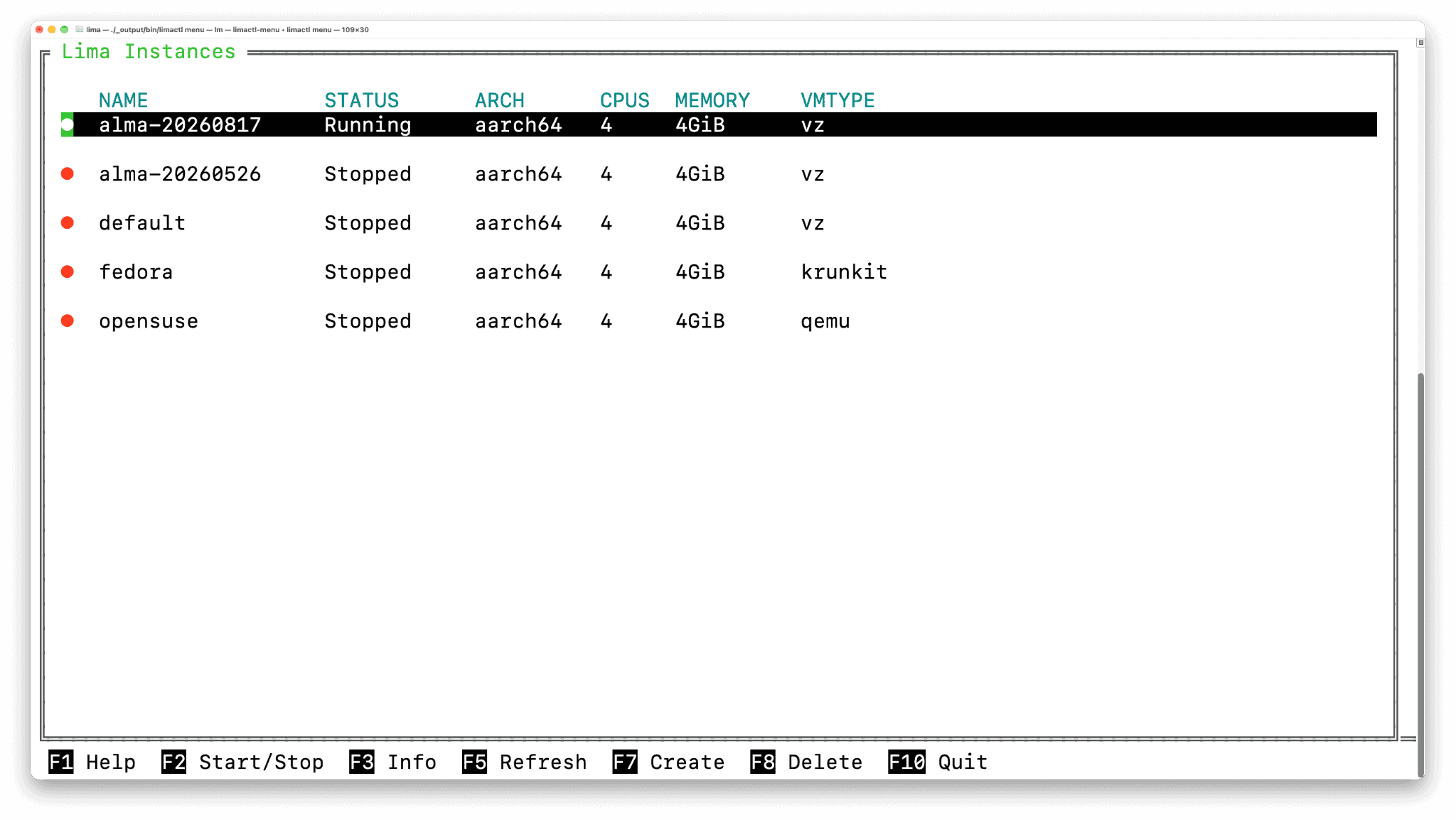
It lists your instances with color-coded status (running first), along with each instance’s VM type, architecture, CPUs and memory. Select an instance to:
- open a shell,
- start, stop or restart it,
- view its info or port forwards,
- protect or unprotect it,
- delete it.
Destructive actions ask for confirmation first. If you don’t have any instances yet, the menu offers to create one.
Safer AI sandboxes
As more people use Lima to run AI coding agents, v2.3 adds a few small but useful features for that use case:
- Choose what the agent gets to see.`
limactl shell --sync` copies your project into the VM so an agent can work on it, then asks you whether to sync the changes back. Until now, it copied everything, including secrets like `.env` files, your `.git`directory, and heavy folders like `node_modules`. The new `--sync-exclude` flag (repeatable, using rsync’s `--exclude` patterns) keeps them on the host:
limactl shell --sync . --sync-exclude .git --sync-exclude node_modules defaultTo keep the list with your project instead, add a `.limasyncignore` file to the directory you sync, with one pattern per line.
- By default, a guest can reach services listening on the host’s `
127.0.0.1` through `host.lima.internal`. With the new `networkOpts.hostLoopback: false` (VZ only), those connections are refused immediately. This means a local database or dev server on your Mac stays out of reach of whatever is running in the VM. See the network docs for details. - Lima’s MCP tools now include `
replace`. Agents can make targeted edits to files inside the guest instead of re-sending the whole file, which saves tokens and reduces the risk of accidental changes.
For the complete list of changes, see the v2.3 milestone.
Thank you, Mie!
Mie Tokunaga (@mie313) has successfully completed the LFX Mentorship 2026 Term 2 program with Lima. Over the term she brought Windows guests to Lima in v2.2, and in v2.3 she added `provision` support for those guests, automatic `PATH` setup on Windows hosts, and the HCS driver. She did excellent work throughout the program, and it was a pleasure to work with her. Thank you, Mie, and congratulations! 🎉
Meet us at KubeCon + CloudNativeCon North America 2026
Come and say “Hi!” in Salt Lake City, Utah!
Conference Session: Lima as the Universal AI Sandbox
- Speaker: Akihiro Suda (NTT)
- When: Tuesday, November 10, 2026 | 16:40 – 17:10
- Where: Salt Palace | Level 2 | 250 D-F
- When: Thursday November 12, 2026 | 10:15 AM – 11:55 AM
- Where: P9A
See also: